35 Million Words
Analyzed Daily

Upload your presentation and check editable slide content, speaker notes, comments, tables, links, and footnotes for plagiarism and AI-written text before submission or delivery.
Check Your PowerPoint Upload PPT or PPTX, or paste your slide text to start a quick originality check.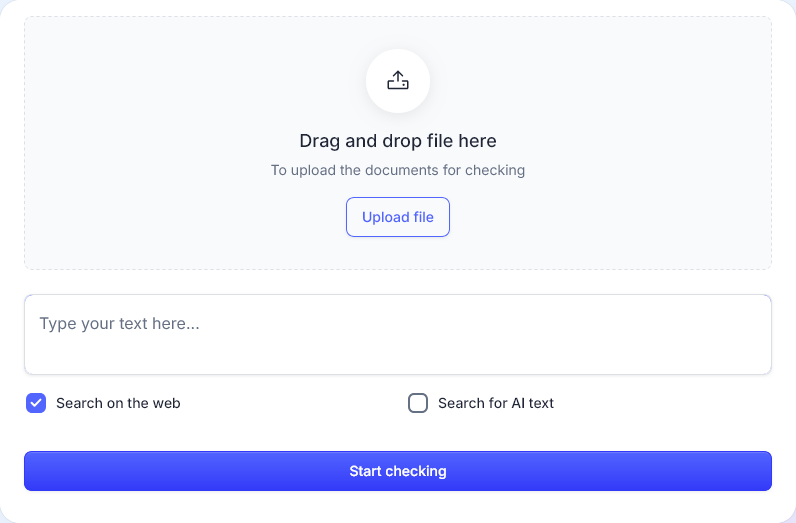
Presentation Plagiarism & AI Detection
 PPT & PPTX File Support
 Slide Text and Notes Extraction
 Clear Similarity and AI Reports
Why PowerPoint Presentations Need Plagiarism Checking
A slide deck can contain copied or poorly cited content in places that are easy to overlook: bullet points, definitions, speaker notes, table cells, source slides, footnotes, and pasted text boxes. PlagCheck helps you review the editable text in your presentation before you submit, teach, publish, or present it.
📌 Copied bullet points and definitions
🔎 Uncited sources in slides or notes
🤖 AI-written presentation text
💬 Hidden text in comments, tables, or footnotes
Check More Than Just Slide Titles
PowerPoint files often contain important text outside the main slide body. PlagCheck is designed to extract editable presentation content from PPT and PPTX files, so you can review slide text, notes, comments, tables, links, and footnotes in one originality report.

PPT & PPTX File Upload
Upload PowerPoint presentations directly and check the editable text inside your slide deck without manually copying every slide.
Slide Text and Bullet Points
Review titles, paragraphs, bullet points, definitions, summaries, and other visible slide text for copied or insufficiently cited content.
Speaker Notes and Comments
Check text stored in speaker notes and PowerPoint comments, where citations, explanations, or copied research notes are often hidden.
Tables, Text Boxes, and Shapes
Analyze editable text placed inside tables, callouts, shapes, and independent text boxes across your presentation.
Plagiarism and AI-Written Text
Use one workflow to review both similarity matches and AI-writing signals in your presentation content.
Clear Reports with Sources
Get an easy-to-read report with highlighted matches, source links, and similarity details you can use before submission.
What a PowerPoint Plagiarism Checker Actually Reads
A presentation is not a simple text document. Important content may be stored in slide placeholders, text boxes, shapes, speaker notes, comments, tables, URLs, or footnotes. A useful PowerPoint plagiarism checker should make it clear what can be extracted from the file and where users may need to prepare the presentation more carefully.
✅ Editable slide text, titles, and bullet points
✅ Text boxes, shapes, tables, notes, and comments
✅ URLs, citations, footnotes, and small editable text
⚠️ Text inside images, screenshots, or complex charts may not be detected
PlagCheck checks editable text extracted from your PowerPoint file. That includes ordinary slide text, titles, bullet points, paragraphs, text boxes, shapes, tables, speaker notes, comments, URLs, citations, footnotes, and small text that is still stored as text in the presentation.
Text that appears only inside images, screenshots, complex charts, videos, or animations may not be detected as regular editable text. For the most complete result, keep important wording as editable slide text, speaker notes, or accessible captions instead of placing it only inside visuals.
Students, teachers, researchers, and professional teams often reuse definitions, source summaries, chart explanations, or research notes while building presentations. Checking the presentation before submission helps catch copied wording, missing citations, unclear source use, and AI-written text before the file is shared.
| Presentation element | Checking status |
|---|---|
| Editable slide text | Checked |
| Titles and bullet points | Checked |
| Text boxes and shapes | Checked |
| Tables | Checked |
| Speaker notes | Checked |
| PowerPoint comments | Checked |
| URLs and footnotes | Checked |
| Text inside images or screenshots | May not be detected |
| Chart-internal labels | May depend on file structure |
| Videos and animations | Not part of text plagiarism checking |
How to Check Your Presentation
Check Your Slides in
Upload your presentation, run the check, and review matched sources before you submit or present.

35 Million Words
Analyzed Daily

Step 1
Upload Your Presentation
Upload a PPT or PPTX file, or paste your slide text directly into the checker. PlagCheck extracts editable presentation text for analysis.
One
Step 2
Run Plagiarism and AI Checks
Choose plagiarism detection, AI writing detection, or both. The system analyzes your slide content, notes, comments, tables, and other editable text.
Two
Step 3
Review Your Report
Use highlighted matches, source links, and AI-writing signals to improve citations, revise copied wording, and finalize your presentation.
Three
35 Million Words
Analyzed Daily
Frequently Asked Questions
PowerPoint Plagiarism Checker — Common Questions
Find answers about PPT and PPTX uploads, speaker notes, comments, AI detection, image-based text, and how to prepare your slides for a more complete originality check.

Do You Have a Different Question?
Contact our support team if you do not find the answer you need.
Contact support teamYes. PlagCheck can check PowerPoint presentations by extracting editable text from PPT and PPTX files and analyzing it for similarity matches. This includes common slide content such as titles, bullet points, text boxes, tables, notes, comments, links, and footnotes.
Yes. You can upload PPT or PPTX files directly to start the check. You can also paste slide text manually if you want to review only part of a presentation or if your file has unusual formatting.
Yes. PlagCheck can extract and check speaker notes from PowerPoint files when they are stored as editable text in the presentation. This is useful because notes often contain explanations, source summaries, or draft text that may need citations.
Yes. Text stored in PowerPoint comments can be extracted and included in the check when it is available as editable content inside the file. This helps users review hidden feedback, research notes, or source references before sharing the deck.
PlagCheck focuses on editable text extracted from the PowerPoint file. Text that appears only inside images, screenshots, or scanned visuals may not be detected as regular text. For the most accurate check, keep important wording as editable slide text, speaker notes, or captions.
Yes. PlagCheck can check editable text placed inside PowerPoint tables, shapes, callouts, and independent text boxes. These elements are often used for definitions, quotes, data explanations, and slide summaries, so they should be reviewed before submission.
Yes. PlagCheck can help review presentation text for AI-writing signals as well as plagiarism. This is useful when slides, speaker notes, or summaries were drafted with AI assistance and need to be checked before academic or professional use.
In most cases, uploading the PPT or PPTX file is the best first step because it allows editable presentation content to be extracted directly. If your presentation has unusual formatting, you may also paste the slide text manually or compare results with an exported version.
Some presentation content may not be stored as editable text. Text inside screenshots, images, complex charts, videos, animations, or certain visual effects may not appear in the extracted text. To improve results, keep important wording in editable slide objects or speaker notes.
Yes. Teachers can use PlagCheck to review student slide decks for copied wording, missing citations, AI-written text, and source-use issues. It can be especially helpful for presentations that include speaker notes, tables, research summaries, or citation slides.
PlagCheck is designed for private originality checking and secure document processing. Your presentation is not used as public content or shared with other users. For detailed information about data handling, you can review the PlagCheck privacy policy.
Use your own wording, cite sources for definitions and data, add references for images and charts, avoid copying long text from articles, and keep research notes clearly separated from final slide text. Before submitting, check both the visible slides and the speaker notes.
Check Your Slides Before You Submit
Upload your PowerPoint presentation and review originality, sources, and AI-writing signals before class, conference, publication, or client delivery.
Start Checking